Install ZSH on OS Windows 11
At this article i'll share my experience about How to install ZSH and oh-my-zsh on my laptop with Windows 11 OS, maybe it's work for Windows 10 OS too.
Install Git Bash
Install Git Bash first, you can download it over here. Do installation till Git Bash installed on your PC.
Download ZSH
Let's download latest version of ZSH over here.
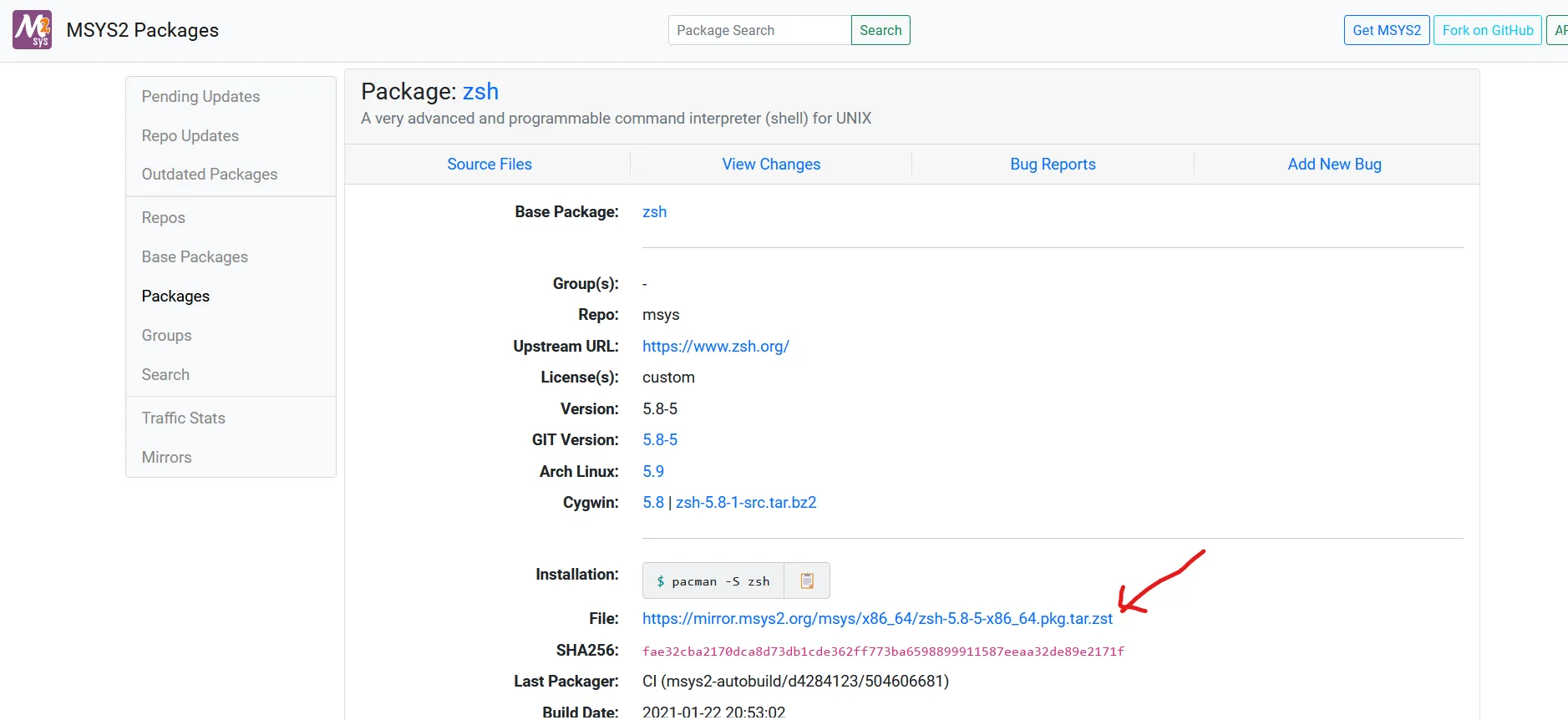
Make sure your file has been downloaded with extension .tar.zst like above picture.
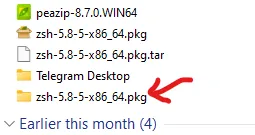
Then ekstract file .zst, i extract it using PeaZip you can download it over
here. Extract .zst file then you will get .tar file and then extract it again from
.tar file and you will get directory like below picture.
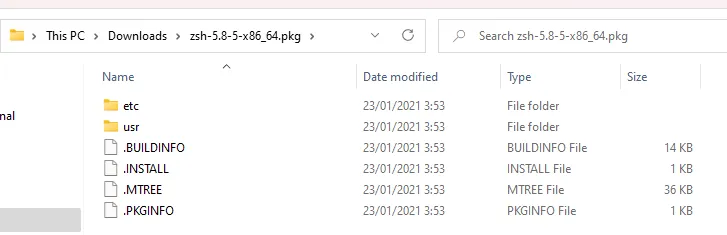
When you open it, you will get like below picture.
Install ZSH
For installation ZSH you can copy etc and usr directory in to Git Bash. For Git Bash location maybe you can found it in C:/Program Files/Git. As you can see at below picture.
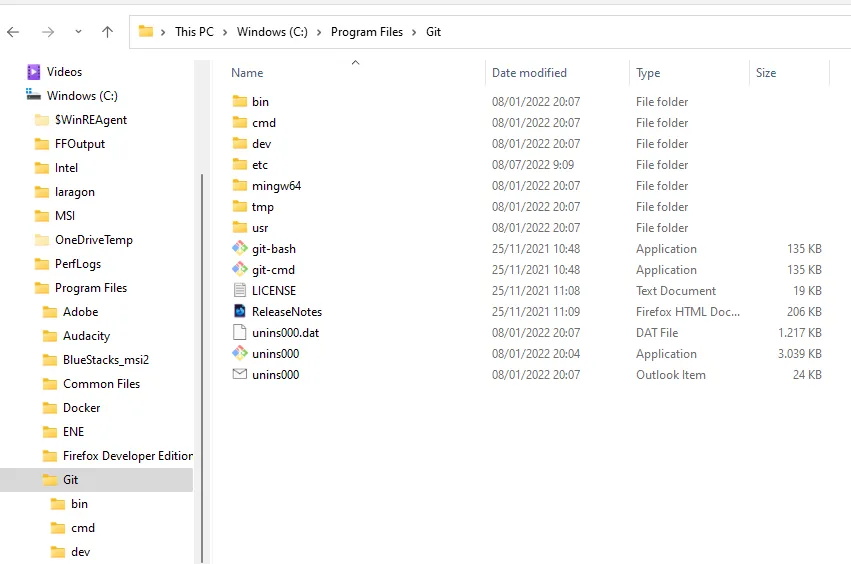
Paste etc and usr directory in to this location, merge etc and usr directory from existing with that will be paste.
When we done do that, exactly we can running ZSH. To try it, let's open Git Bash and run zsh command and press enter, then will begin
into ZSH mode. But if we will open Git Bash automatically using ZSH we should setup it again.
Setting ZSH
For ZSH running automatically when we open Git Bash, we should add .bashrc file at C:/Users/user_name/ with this code:
if [ -t 1 ]; then
    exec zsh
fi
Make sure when you create .bashrc file you running as Administrator.
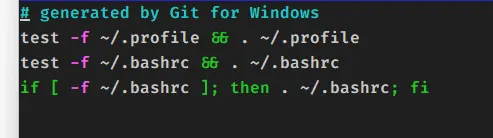
Maybe .bashrc can't running directly by windows, for solve this you can edit .bash_profile file at same path with .bashrc file
or if it not exist you can create as administrator and edit it like below code.
Install oh-my-zsh
Next, install oh-my-zsh, open Git Bash and run below command.
sh -c "$(curl -fsSL https://raw.githubusercontent.com/ohmyzsh/ohmyzsh/master/tools/install.sh)"
Installation complete.
For make your ZSH more beautiful you can change the theme and install some other plugins, for installation plugins you can read documentation at plugin's documentation page. Like:
- https://github.com/zsh-users/zsh-completions
- https://github.com/zsh-users/zsh-autosuggestions
- https://github.com/zsh-users/zsh-syntax-highlighting
To change the theme you can edit .zshrc file at path ~/.zshrc you can edit it via Git Bash ZSH that run as Administrator and edit this
section with name of theme that was exist by oh-my-zsh as default.
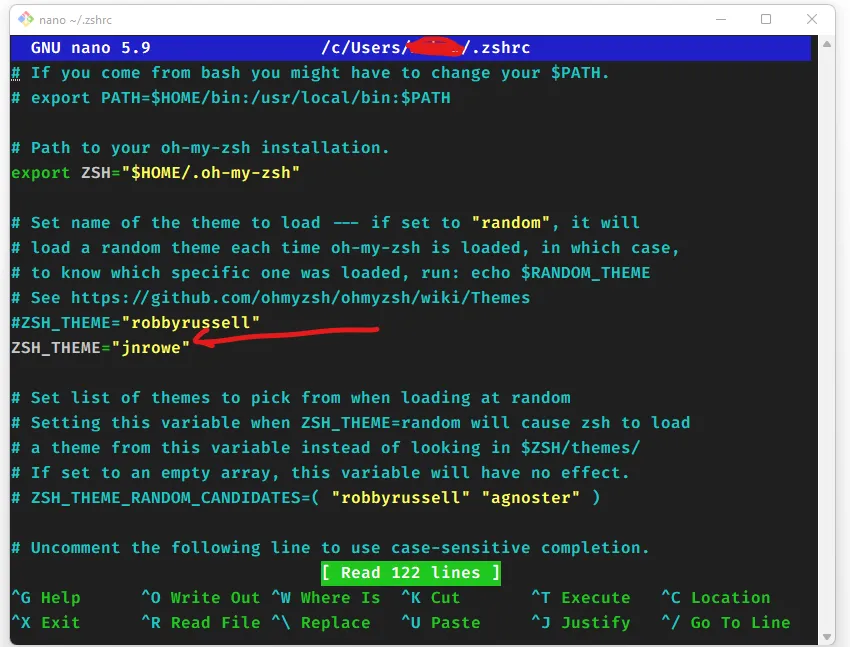
For theme list that exist as default you can see over here.
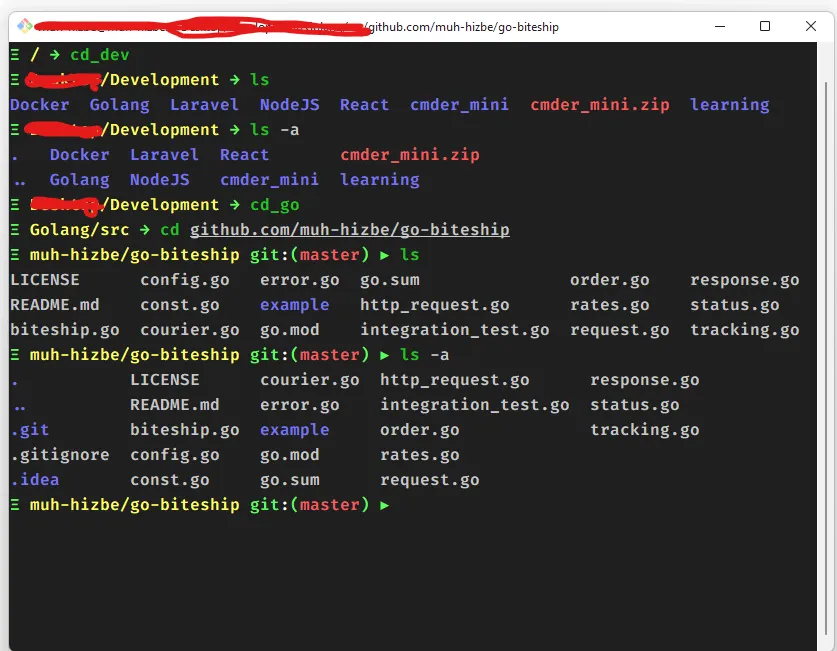
Finally view of my Git Bash with ZSH.